Fancy Cafe guide
How to make a fancy cafe AI video from two photos
Updated 6 November 2026
There is no prompt to write and no timeline to edit. The cafe set, the camera moves and the soundtrack are already built; the only input is two photos. Here is the whole path, including what to check before you upload and what to do before you post.
The two slots, and what goes in each
The generator needs one file per role before it starts. He and She are positions in the same 20-second cut: one sits at the wall table, the other walks in and takes the bench by the window. The same face can appear in both roles if you only have one good photo.
- He — the first person in the scene, at the wall table.
- She — the second person, who arrives and sits by the window.

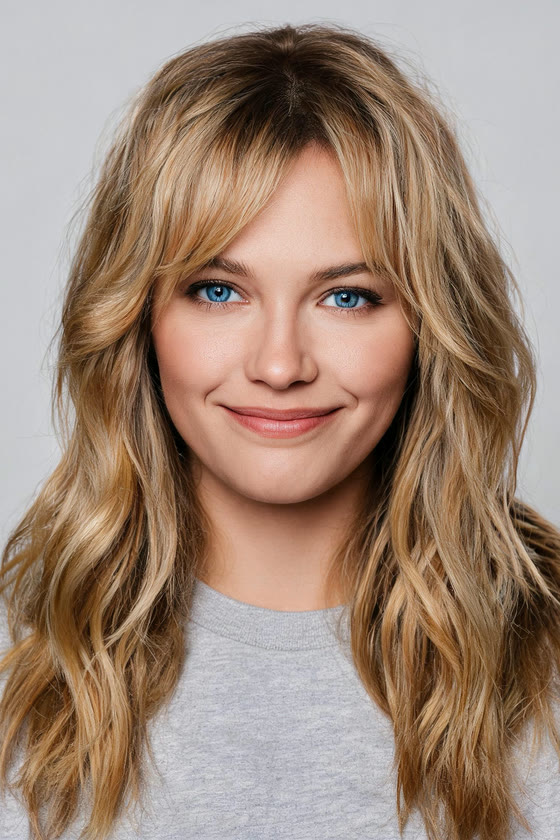
Before you upload: what makes a good photo
The render keeps the face from each upload, so a small or turned-away face gives it less to work with. A clean phone portrait in daylight usually beats a heavily filtered or low-light one.
- Front-on face, eyes visible, no sunglasses.
- Even light; avoid a hard shadow across one side of the face.
- One clear subject per photo, with the face large enough to survive a crop.
- JPG, PNG or WebP, up to 8 MB per file.
- Only photos of adults you have permission to use; no public figures.
Step 1 — Fill the two slots
Open the generator and add one photo to each role. You can drag a file onto a slot or click it and choose one from your device. Each slot is labelled, so you always know where the face will land.
Both slots need a file, but they can be the same file. Reusing one portrait is fine: the output will place that face in both positions rather than inventing a second person.
Step 2 — Generate the preview
Press Generate preview. The preview is the first frame of your own session and it is not charged — you do not need credits or a subscription to see how the cast lands.
The job runs on the server. You can close the tab and come back: the preview and the session appear in History on this device. A preview blocked by content review costs nothing.
Step 3 — Unlock and download
A finished video costs 50 credits. The packs are $5.99 for 50 credits, $9.99 for 100 and $14.99 for 200, bought once and valid for 30 days. There is no subscription and no auto-renewal.
Unlocking renders the motion, the original soundtrack and a clean MP4 with no watermark. It usually takes 3–6 minutes; you can leave the page and download the file from History when it is ready.
What you get
- 20-second MP4
- 9:16 vertical, 720p
- An original AI-composed soundtrack
- No watermark
- One finished video per 50 credits
What can go wrong, and what to fix
- A face is turned away or too small → try a front-on portrait.
- Two people in one photo → crop to one face.
- A photo of a minor, a public figure without consent, or a deepfake attempt → blocked by content review; nothing is charged.
- A render fails → the 50 credits return to your balance automatically.
- A file is over 8 MB → export a smaller JPG or WebP.
Before you post
The clip is vertical 9:16, sized for TikTok, Reels and Shorts. Our file ships with an original soundtrack rather than the trend's track; if you want that sound, add it from the platform's music library before publishing, and check the platform's rules for it.
Use the platform's AI-generated content toggle, and do not present the clip as real footage. If you were looking for an editable project instead of a finished file, read the CapCut template comparison first.
The preview is the first frame of your own clip. Unlocking the finished 20-second file is the only paid step.
Start with your two photos
The preview costs nothing. You only pay when you unlock the finished 20-second file.
Fancy Cafe AI video generatorRelated fancy cafe guides
TinyDesk Studio is an independent fan-made AI tool. The cafe scene on this site is our own original AI generation: we do not copy or host the original viral clip, and every video we make is AI-generated.